
Invite your team and set roles
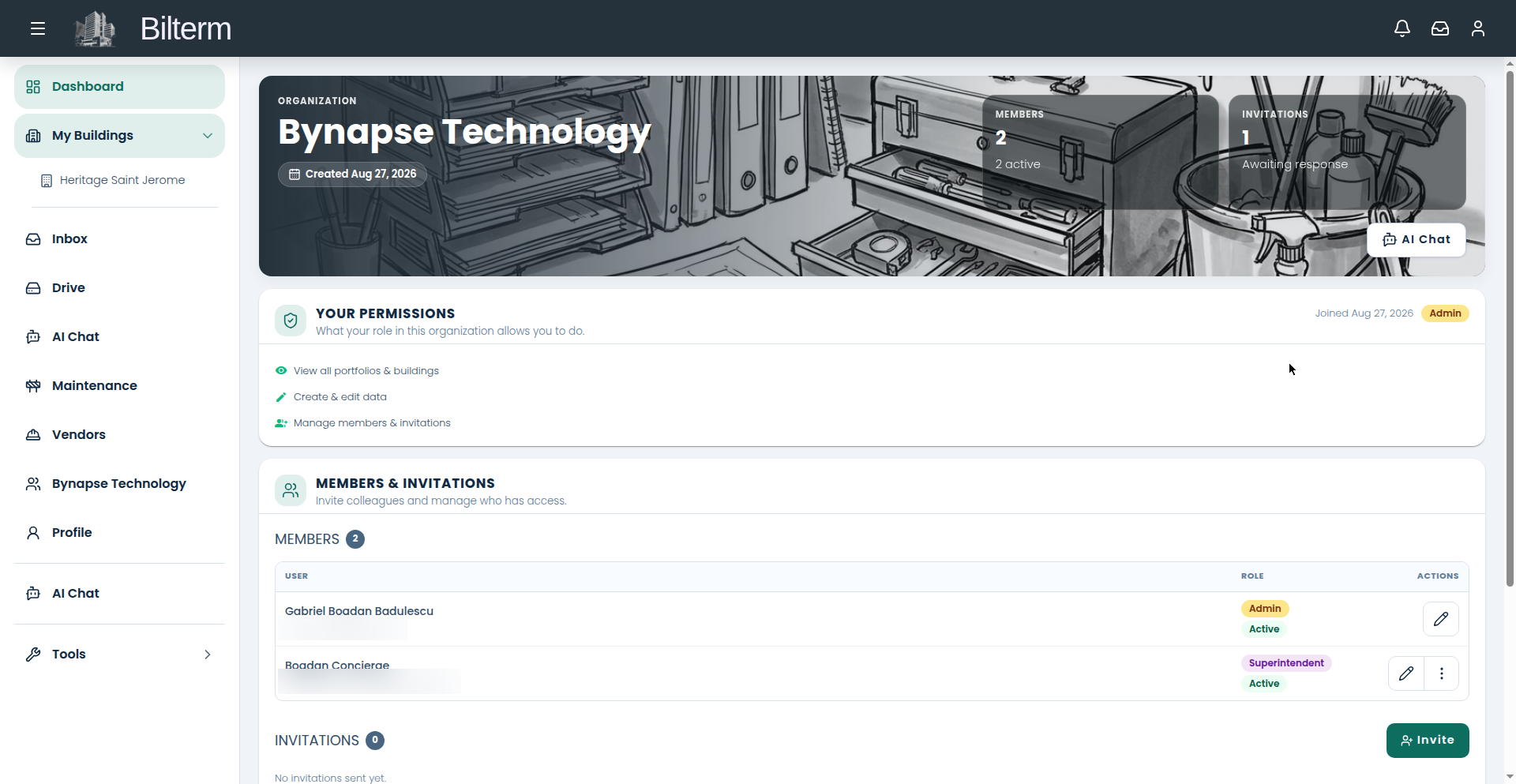
Bilterm works solo, but the moment you bring on a superintendent, a partner, or a bookkeeper, you want roles — not everyone needs to see everything.
- Go to Team. The page shows member stats, your own permissions, the members table, and tenant invitations.
- Click Invite (Invite Team Member).
- Enter the Email (required) and choose the Role (required, defaults to Viewer). Add a Phone (optional) if you want the invitation notification by SMS — include the country code.
- The five roles: Admin (everything, including members and org settings), Manager (write access to data), Superintendent and Janitor (building-scoped, read-only), Viewer (read-only). Admin and Manager can write; the other three can’t change data.
- For superintendents and janitors, scope the assignment to specific buildings for a dated period — e.g. this building, from June to September. Assignment history is preserved, and you can attach their contract file to the membership.
- They get an email invitation with a link to join. Track pending invitations on the Team page.
Tips
- Default to the least access that gets the job done. A janitor needs their buildings, not your rent ledger.
- Tenant invitations live in the separate Tenants section of the Team page — don’t confuse them with team members. Tenants get portal access, not team roles.
- The organization can’t be deleted while members remain — remove everyone first. That’s a safeguard, not a bug.
Leave a Reply
Want to join the discussion?Feel free to contribute!