
Connect your own AI agent (MCP)
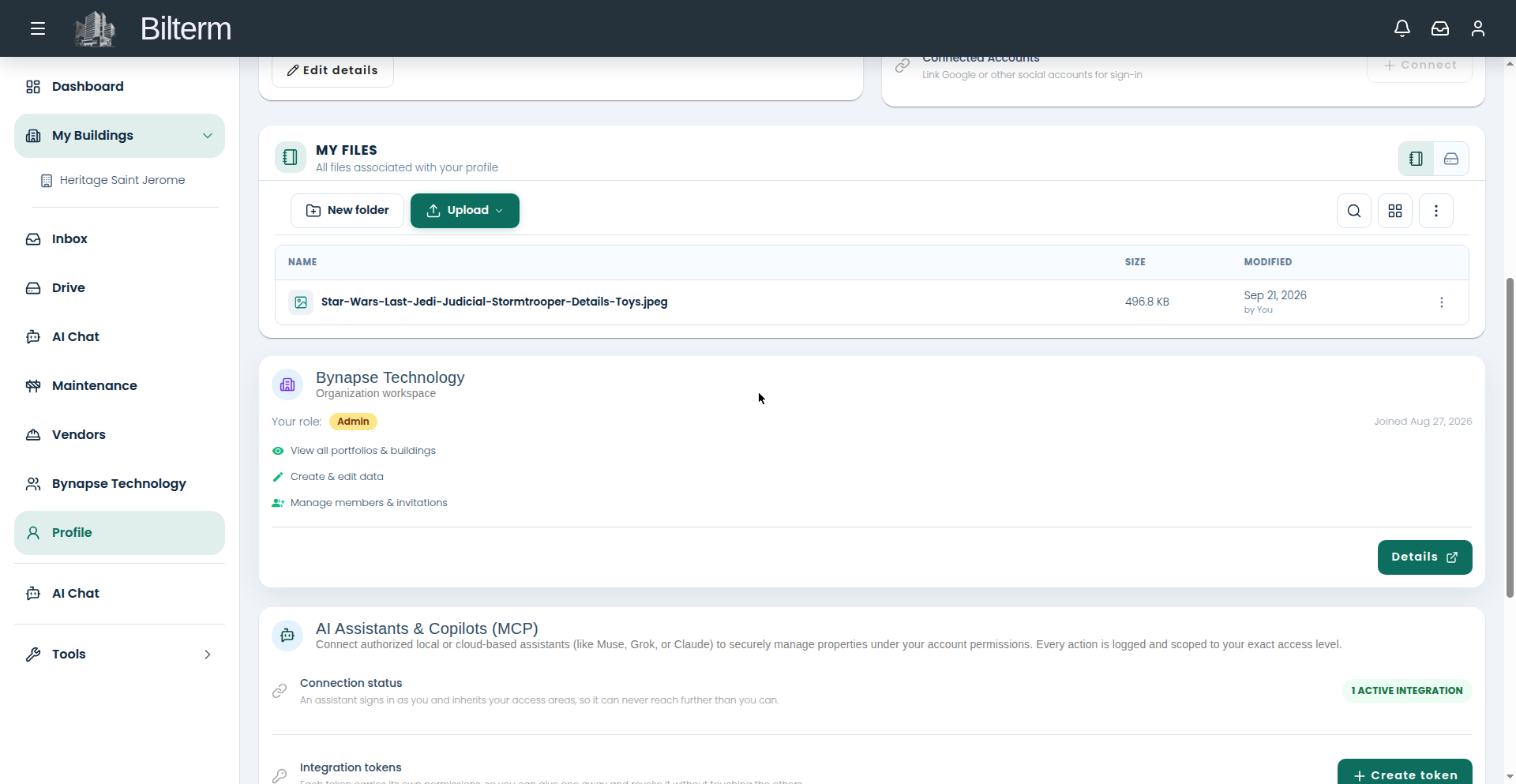
Beyond the built-in assistant, Bilterm lets you connect your own AI agent — Claude, Grok, or any MCP-capable tool — directly to your portfolio data via the Model Context Protocol.
- Go to Profile → AI Assistants & Copilots (“Connect authorized local or cloud-based assistants to securely manage properties under your account permissions”).
- Click Create token. Name it after the integration (e.g. “Claude-desktop-read”), choose read-only or read-write scopes, and set an expiry. The token is shown once — copy it immediately.
- Connect your agent:
- Local: run the
bilterm-mcpserver on your machine with the token. The Profile page shows setup tabs for Claude Code, Grok, and Others. - Hosted: point a cloud agent at the hosted MCP endpoint with the token as the bearer credential.
- Local: run the
- Start with the
whoamitool — it reveals exactly what the token can access. - Ask away: list properties, leases, tenants, rent payments, files, inbox conversations.
The 8 tools
whoami, list_properties, list_leases, get_lease, list_tenants, list_rent_payments, list_files, list_inbox_conversations.
Safety model
- The server holds zero permission logic — row-level security in the database decides every row. A restricted token returns empty results, not errors.
- Revoke a token on your Profile page and the agent’s access stops immediately.
- Every call is logged under Profile → Agent activity: which token, which tool, when.
Tips
- One token per agent. If something looks off, you revoke one integration, not everything.
- Start agents on read-only scopes. Grant write only when the agent needs to act, not just report.
- The tokens table shows each token’s prefix, expiry, last-used date, and scopes — review it the way you’d review who has keys to your buildings.
Leave a Reply
Want to join the discussion?Feel free to contribute!