Add your first building and units
Everything in Bilterm hangs off the building-and-unit structure: leases attach to units, the rent ledger rolls up to the building, maintenance is filed per unit. Set this up first and the rest falls into place.
- Go to My Buildings (the portfolio overview) and click Add building.
- Work through the guided setup: building name, address, and a photo. Add the building metadata you have — roof age, boiler type, tax ID — in the detail fields; you can fill in the rest later.
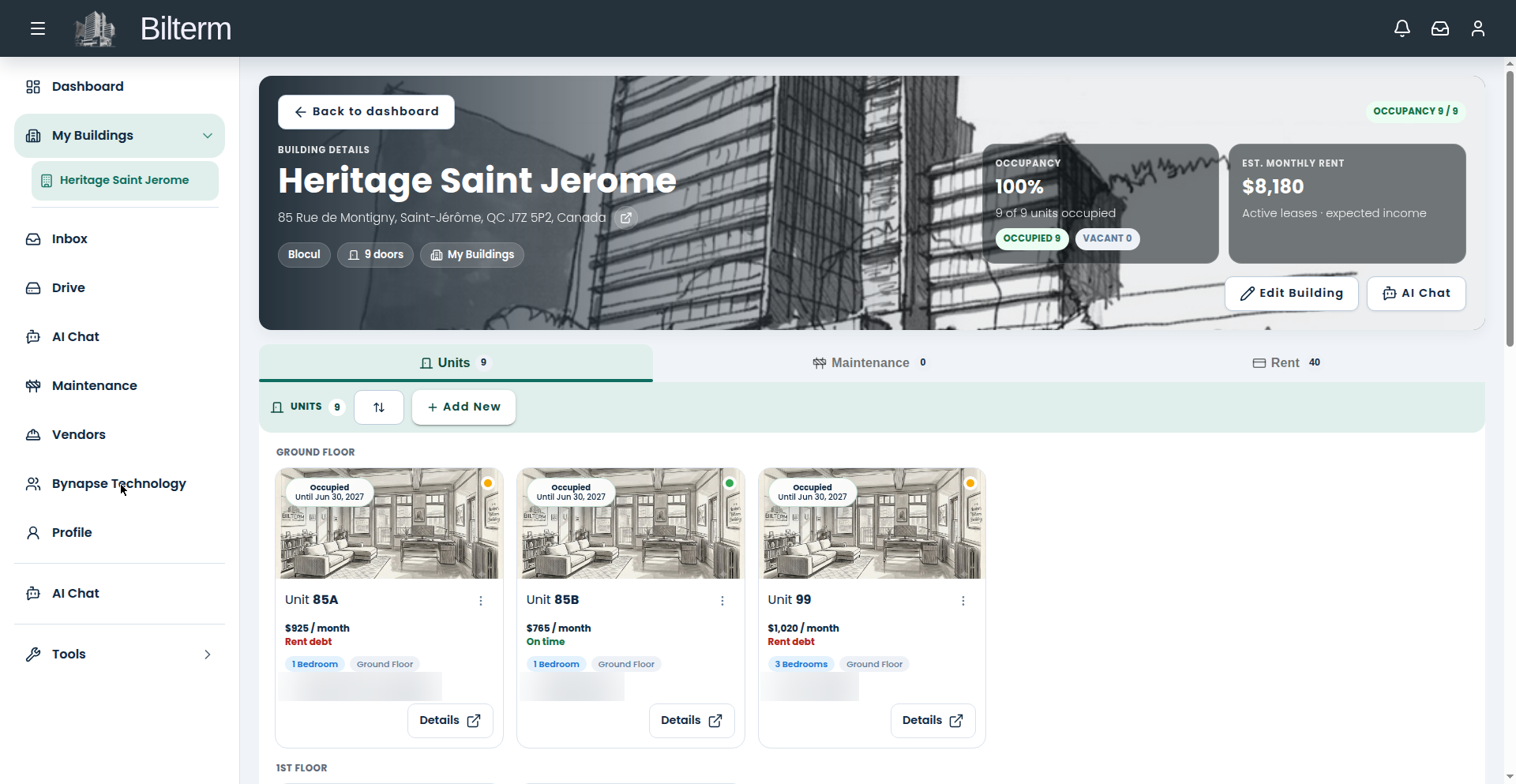
- Open the new building. The detail page shows a map card, a KPI strip, and three tabs: Units, Entretien, Rent.
- On the Units tab, click Add New to create your first unit.
- In the Add New Unit dialog, enter the Unit Number (required), plus Type, Level (defaults to Ground Floor), and a Description. Save.
- Repeat for every unit in the building. Each appears as a card showing photo, rent per month, status chip, bedrooms, floor, tenant, and lease end.
- Use the sort and filter controls — by floor, by problems, by lease status — and the unit search once the list grows.
Tips
- Add all units before creating leases: the lease form attaches to a unit, and it’s faster when the full list exists.
- Unit numbers are the backbone of the ledger descriptions (e.g. “Unit 85A, J. Tremblay — Aug 2026”), so use the numbering your tenants actually recognize.
- The building’s Files & Photos section is a good home for the deed, insurance certificate, and exterior photos — click Add file while you’re setting up.
Laisser un commentaire
Rejoindre la discussion?N’hésitez pas à contribuer !