
Organize files in Drive and share them
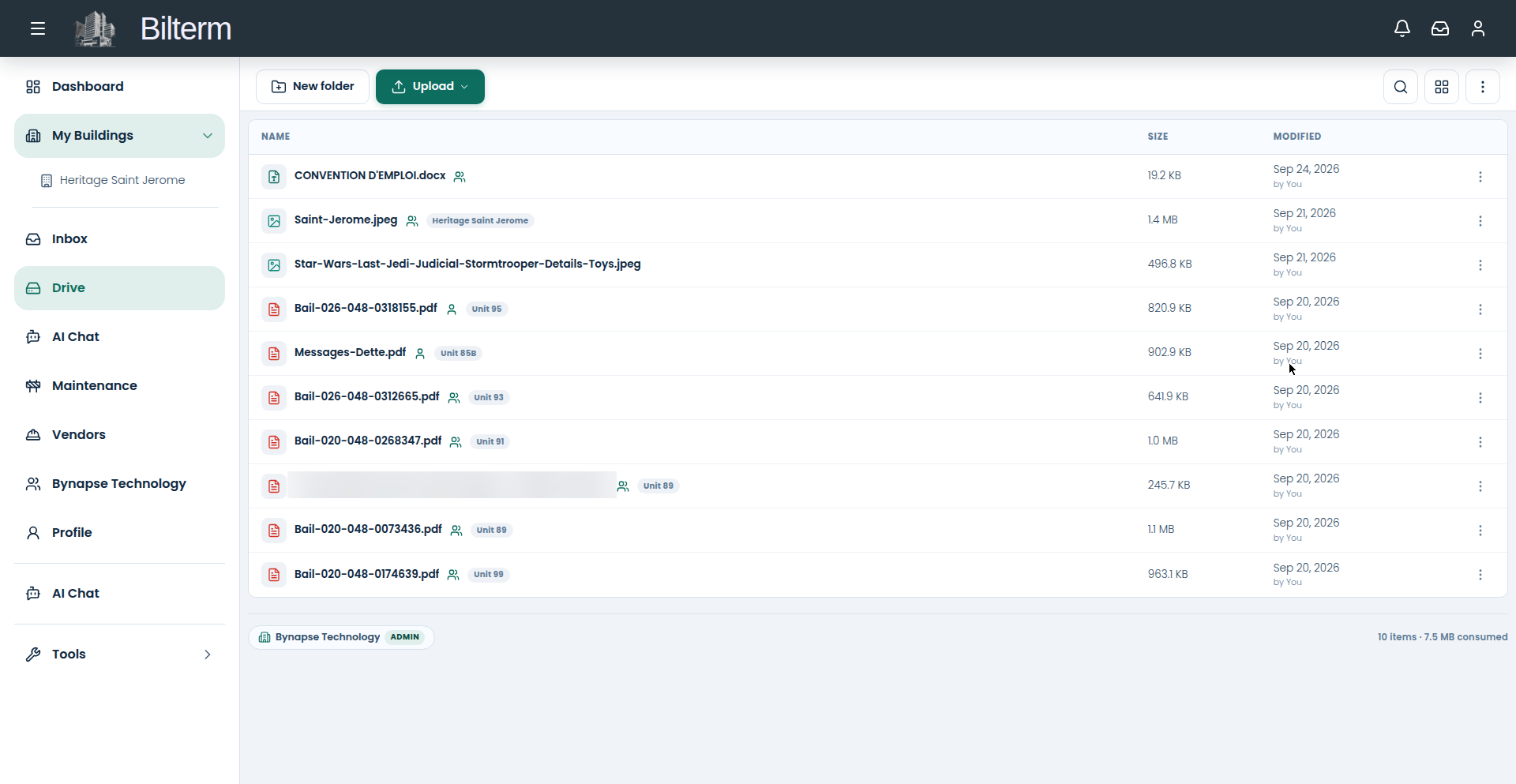
Drive is Bilterm’s file manager: leases, insurance certificates, invoices, floor plans, photos — organized by building, unit, lease, and tenant instead of dumped in one folder.
- Open Drive. The toolbar gives you New folder, Upload (with a dropdown), Search files, view toggle (grid/list), and the sections and storage menu.
- Follow the physical folder tree: Buildings → Units → Leases → Tenants. A lease PDF belongs under its unit; the building’s insurance certificate belongs at the building level.
- Upload with the dropzone or the Upload button. Files show their size and date; the header shows how much storage you’ve used.
- Tag files by category — lease, invoice, insurance, contract, floor-plan, photo, report, other — and add tags so search actually finds things.
- Share per file: open the file’s 3-dot menu and share it with a tenant, a team member, or a vendor. Everything is private to your organization until you share it.
- You don’t have to live in Drive: the building detail page has its own Files & Photos section with Add file, and records like superintendent contracts have an attach-file control built in.
Tips
- Name files like you’ll search for them: “Bail-85A-2026-2027.pdf” beats “scan_final2.pdf.”
- Share the signed lease with the tenant at signing time — then stop emailing leases entirely.
- Keep two file areas straight: team files (visible to your organization) and personal files (yours alone). The building insurance goes in team files; your private notes stay personal.
Leave a Reply
Want to join the discussion?Feel free to contribute!